local instead of the cloud
Create an image database – all your pictures in one catalogue
Photos on the internal disk, graphics on the network drive, old projects on USB sticks: with Album 42 you create an image database across all drives in one click – with a thumbnail, colours, topics and shooting data for every file. For home, for photographers and designers, for small businesses. On your computer, not in the cloud.
How to create your image database
Scan all drives
One click on “Scan all drives” reads everything, network drives included. Album 42 skips system and cloud folders.
The catalogue stays up to date
Album 42 notices new and changed folders by itself and marks them. “Rescan changes only” brings everything up to date.
Find and pass on
Search by name, content, colour or tag – and drag the picture straight into an email, document or graphics program.
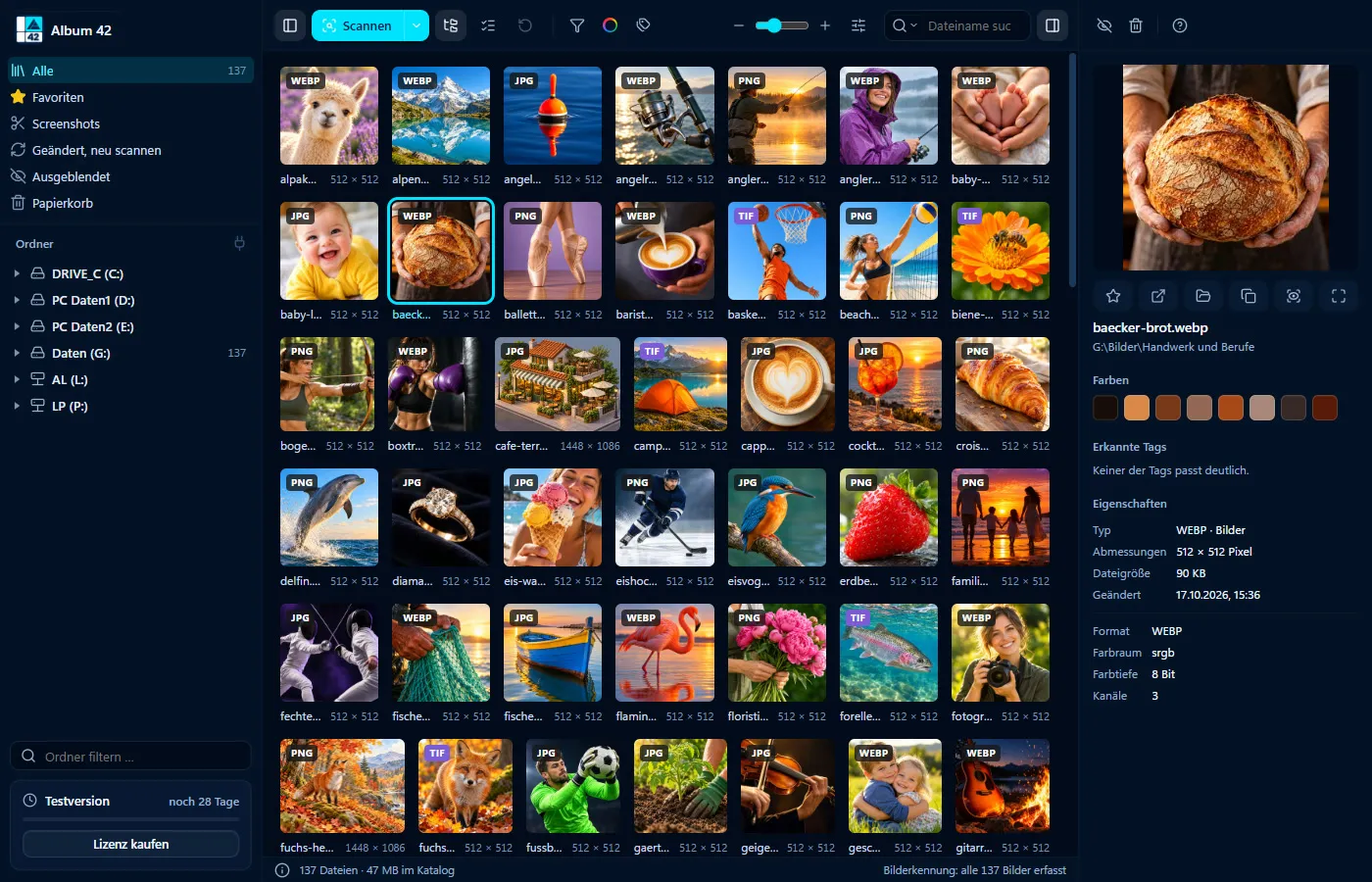

What the image database holds
- thumbnail, location, format, size, resolution and date of every file
- for photos: camera, lens, exposure and where it was taken
- the main colours of every picture – with HEX, RGB, CMYK and the nearest RAL shade
- recognised topics such as People, Landscape or Logo, plus your own tags and favourites
A private image database
Photos from your phone, your camera and old hard drives in one catalogue: find holiday pictures on the world map, family celebrations by date taken and everything else with the AI search. No account and no monthly fee.
An image database for small businesses
Product photos, logos, templates: whoever searches for pictures in the office finds them by description or colour instead of by folder path. Album 42 runs on each workstation on its own – no server, no subscription, one licence per computer. If the pictures are on a network drive, every workstation can scan them.
Back up the image database
The whole catalogue lives in one data folder. Back that up and you have backed up the image database – the pictures themselves stay where they are.
Frequently asked questions
How do I create an image database?
Install Album 42 and click “Scan all drives”. Album 42 records thumbnails, colours, topics and shooting data of all pictures in its catalogue and keeps it up to date by itself.
Is the image database software also available for the Mac?
Yes. Album 42 runs on Windows 10 and 11 and on macOS 12 or later, on Macs with Apple silicon and with Intel processors. One licence covers Windows or Mac.
Where is the image database stored?
On your computer, in the Album 42 data folder. There is no server and no cloud.
Can several workstations share the same catalogue?
No, every computer has its own catalogue. If the pictures are on a network drive, each workstation scans them for itself.
Does Album 42 change my pictures?
No. Thumbnails, colours and tags live in the catalogue; your files stay unchanged. Only if you drag pictures onto another folder yourself does Album 42 move them there – more under sort photos. And a picture you rotate or straighten in the viewer only changes when you click “Save”.
How much does Album 42 cost?
€29 once for version 1 including all updates, for one computer – no subscription. Before that you can try it free for 28 days without signing up.
Try it free for 28 days
No sign-up, no subscription. If you like Album 42, you pay €29 once – including all updates of version 1.
More guides
- How to sort photos on your PC – into folders, by date, colour and topic
- Sort photos by location – every place you took a photo, on a world map
- Find photos by date taken – narrow down by month and year
- Find and delete duplicate photos – and similar ones too
- Open HEIC files on Windows 11 – view iPhone photos without an extension
- Search photos on your PC – with AI by content, place and date
- Thumbnails not showing in Windows 11? Previews for 81 formats
- Save screenshots and clipboard images automatically
- AI photo tagging – sort photos with AI automatically
- Label AI images – with logo and metadata, on the copy only
- Find photos on an external hard drive – even when it isn’t connected
- Fast photo viewer for Windows 11 and Mac
- PSD thumbnails in Windows? View Photoshop files without Photoshop
- CDR viewer – open CorelDRAW files without CorelDRAW
- EPS, AI and SVG thumbnails on Windows 11 and Mac
- View RAW files on Windows 11 and Mac
- Photo organizer for Mac – all pictures, all drives, 81 formats
- ThumbsPlus alternative for Windows 11 and Mac