where was that again?
Sort photos by location – every place you took a photo, on a world map
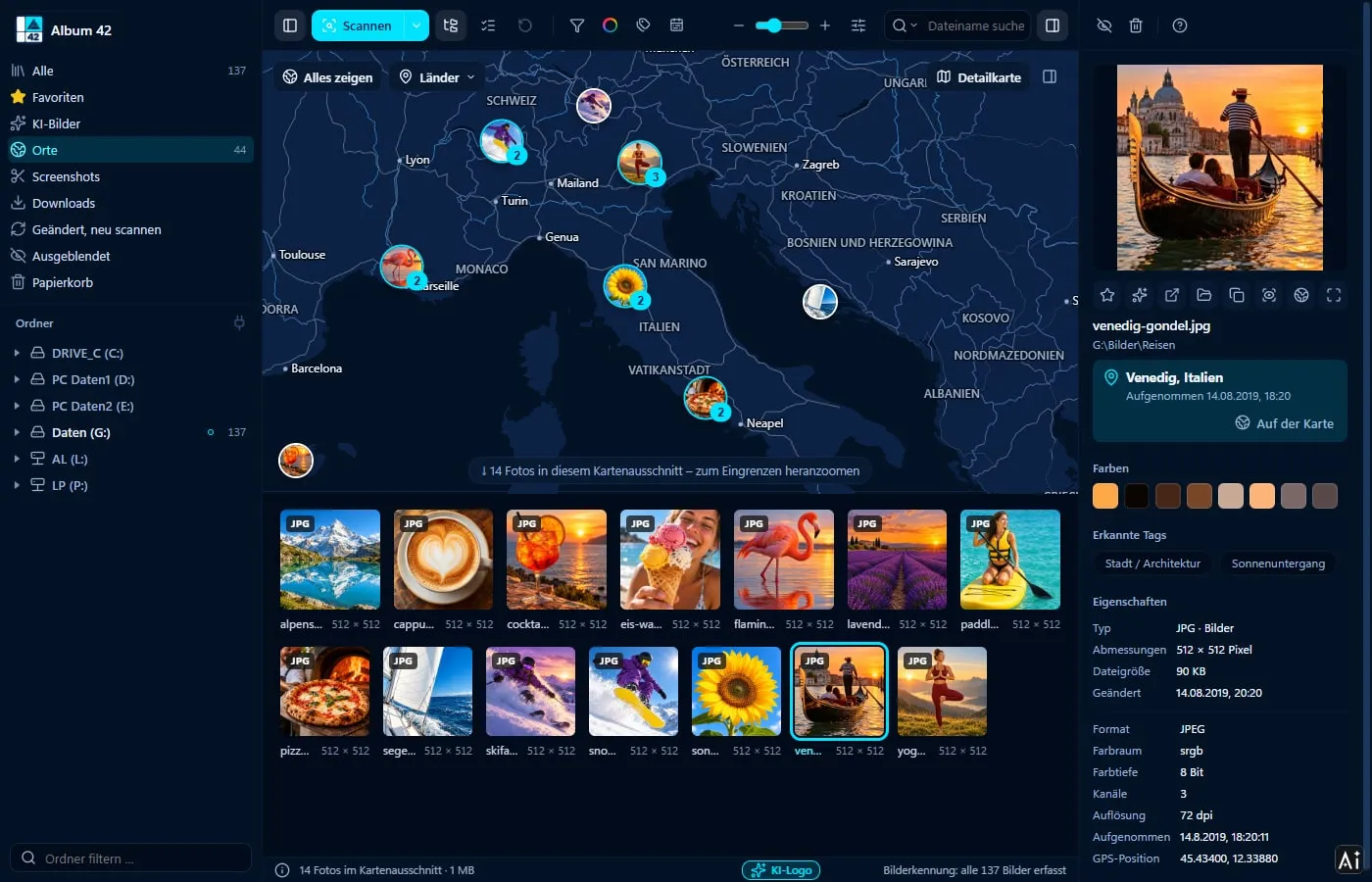
Phone photos know where they were taken. Album 42 reads the location from every photo and shows your photos on the world map exactly where you took them. Zoom in and only the photos from that area remain below: Venice, the seaside, the garden behind the house. Map and place names are built in, your photos stay on your computer. On Windows 11 and on the Mac.
How to sort photos by location
Scan
Scan your photo folder, phone backup or external drive. Album 42 reads the location and the time taken along the way.
Open “Places”
Click “Places” in the sidebar on the left. The world map shows all photos with a location; photos close together share a round picture with their number.
Zoom in
The mouse wheel or a click on a round picture zooms in. Below the map you only see the photos from the visible area.
Search photos by location
Type a place or a country into the search field, such as “Rome”, “France” or “Aschersleben”: Album 42 shows the photos from there, in every view. In the “Places” view the map flies straight to the results. “Show all” brings all photos back into view, “Countries” jumps directly to a country.
Where was this photo taken?
Click a photo: in the detail panel on the right, the place with date and time appears below the file name, for example “Venice, Italy, taken 14/08/2019, 18:20”. The globe button jumps from any view to the map and shows the photo there. The photo stays selected.
A world map without internet
The built-in map needs no internet. It shows countries, states, rivers, lakes, major roads and places from about 5,000 inhabitants. Album 42 finds the place name for each photo in a built-in list of towns and municipalities.
If you want more detail, switch on the “Detail map” at the top right: a street map with villages, forests and buildings from OpenFreeMap. The map service sees your IP address and the map section, never your photos. Switched off, Album 42 connects to no map service at all.
Location and date range together
Show the date range above the map and the map only shows the photos from those months. Zoom to Spain, set the range to August 2019, add the AI search “beach”: there are your beach photos from that holiday, without ever creating an album.
Which photos have a location?
Phones and drones save the location in the photo (GPS in the EXIF data) when the camera is allowed to use location services. Album 42 reads it from JPG, TIFF, HEIC and the common camera RAW formats. Many cameras without GPS and some edited pictures have no location; they do not appear on the map but stay in the catalogue as usual.
Frequently asked questions
How can I sort photos by location?
Scan your photos with Album 42 and open the “Places” view on the left. The photos sit on the world map where they were taken; when you zoom in, the grid below only shows the photos from that area.
How does Album 42 know where a photo was taken?
From the GPS data that the phone, drone or camera writes into the photo. Album 42 reads it while scanning, and once in the background for photos already in the catalogue.
Can I search for a place name?
Yes. Place names and countries in the search field find the photos from there, for example “Rome” or “France”. In the “Places” view the map flies to the results.
Are my photos uploaded for this?
No. The map and the place names are built in. Only if you switch on the detail map does Album 42 load map tiles from OpenFreeMap; the service never sees your photos.
Why are some photos missing from the map?
They have no saved location, for example because location was switched off on the phone or the camera has no GPS. You still find these photos in all other views.
Does it run on Windows 11 and on the Mac?
Yes – on Windows 10 and 11 (64-bit) and on macOS 12 or later, on Macs with Apple silicon and with Intel processors.
Try it free for 28 days
No sign-up, no subscription. If you like Album 42, you pay €29 once – including all updates of version 1.
More guides
- How to sort photos on your PC – into folders, by date, colour and topic
- Find photos by date taken – narrow down by month and year
- Find and delete duplicate photos – and similar ones too
- Open HEIC files on Windows 11 – view iPhone photos without an extension
- Search photos on your PC – with AI by content, place and date
- Thumbnails not showing in Windows 11? Previews for 81 formats
- Create an image database – all your pictures in one catalogue
- Save screenshots and clipboard images automatically
- AI photo tagging – sort photos with AI automatically
- Label AI images – with logo and metadata, on the copy only
- Find photos on an external hard drive – even when it isn’t connected
- Fast photo viewer for Windows 11 and Mac
- PSD thumbnails in Windows? View Photoshop files without Photoshop
- CDR viewer – open CorelDRAW files without CorelDRAW
- EPS, AI and SVG thumbnails on Windows 11 and Mac
- View RAW files on Windows 11 and Mac
- Photo organizer for Mac – all pictures, all drives, 81 formats
- ThumbsPlus alternative for Windows 11 and Mac