AI image search without the cloud
Search photos on your PC – with AI by content, place and date
“Children playing outside”, “red car”, “logo with a mountain”: type what the picture shows and Album 42 finds it in your own folders – without you ever adding a keyword. The image recognition runs on your computer. No picture is uploaded. You can also find pictures by place, date taken, colour and file name.
How to search by image content
Scan
Scan a folder or drive. Then the image recognition looks at every picture once – in the background, about a tenth of a second per picture.
Choose “Image content”
Use the magnifier in front of the search field to switch from “File name” to “Image content”.
Describe
Type what you are looking for – for example “beach at sunset”. The best matches come first.
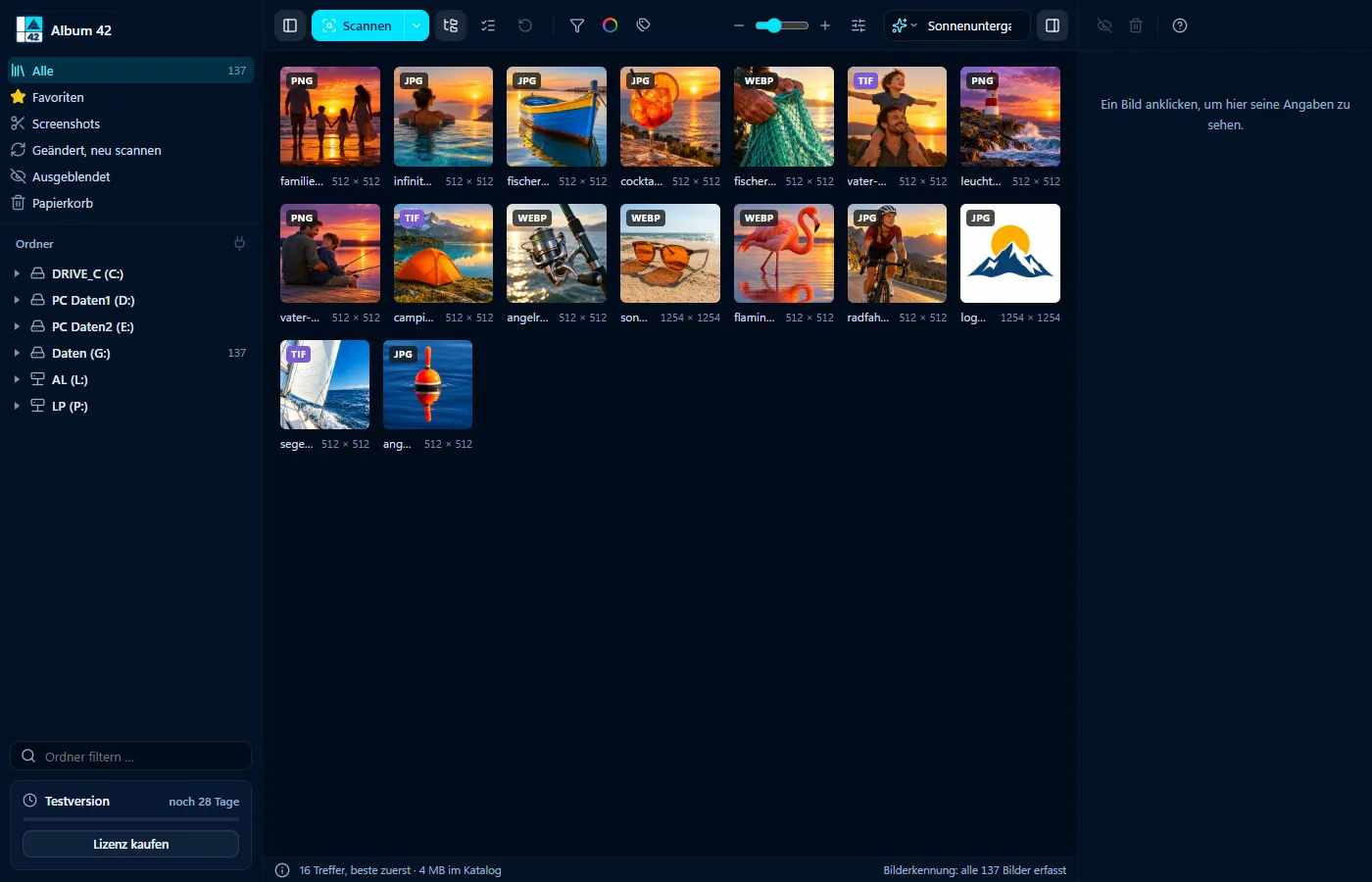

No cloud, no account
The image recognition model is downloaded once and then runs on your computer – even without internet. Your pictures never leave the computer.
Stricter or more generous
In the filter menu you set how strict the matches should be: “strict” shows only the surest ones, “generous” more and in return less precise ones. The search can be combined with colour, file type and tags. Right-click a match and choose “Show folder in tree” to jump straight to its folder.
Search by place, date and file name
Place names and countries in the search field, such as “Rome” or “France”, find the photos from there; on the world map you see them all at a glance. With “Date range” you narrow down by month and year taken (photos by date taken). And if you still remember the file name, switch the magnifier to “File name”.
Search for similar images
Right-click a picture and choose “Find similar images”: Album 42 shows whatever looks similar from the whole catalogue, the most similar first. That is how you find burst shots, edited versions and duplicate photos.
What the image recognition cannot do
It recognises things, scenes and moods, but not persons – faces are not recognised. Now and then an unsuitable picture slips into the results; further down, the matches become less precise.
Frequently asked questions
How can I search for pictures on my PC?
Scan folders or drives with Album 42, set the magnifier in front of the search field to “Image content” and describe what the picture shows. You search by file name, place, date taken and colour in the same window.
Are my pictures uploaded to the internet?
No. The catalogue and the image recognition run on your computer. Album 42 only goes online for the licence, updates and once to download the image recognition.
Do I have to add keywords first?
No. The image recognition looks at every picture by itself. You can add your own tags as well.
How long does the analysis take?
About a tenth of a second per picture. Meanwhile the search already finds the pictures analysed so far; “Pause” in the bottom bar pauses the recognition.
Does it run on Windows 11 and on the Mac?
Yes – on Windows 10 and 11 (64-bit) and on macOS 12 or later, on Macs with Apple silicon and with Intel processors.
Try it free for 28 days
No sign-up, no subscription. If you like Album 42, you pay €29 once – including all updates of version 1.
More guides
- How to sort photos on your PC – into folders, by date, colour and topic
- Sort photos by location – every place you took a photo, on a world map
- Find photos by date taken – narrow down by month and year
- Find and delete duplicate photos – and similar ones too
- Open HEIC files on Windows 11 – view iPhone photos without an extension
- Thumbnails not showing in Windows 11? Previews for 81 formats
- Create an image database – all your pictures in one catalogue
- Save screenshots and clipboard images automatically
- AI photo tagging – sort photos with AI automatically
- Label AI images – with logo and metadata, on the copy only
- Find photos on an external hard drive – even when it isn’t connected
- Fast photo viewer for Windows 11 and Mac
- PSD thumbnails in Windows? View Photoshop files without Photoshop
- CDR viewer – open CorelDRAW files without CorelDRAW
- EPS, AI and SVG thumbnails on Windows 11 and Mac
- View RAW files on Windows 11 and Mac
- Photo organizer for Mac – all pictures, all drives, 81 formats
- ThumbsPlus alternative for Windows 11 and Mac